 Home
HomePrusa Slicer
Load your file
If you have a .stl, .obj, .step, .amf, or .3mf file, use the
File > Import > ImportSTL/3MF/STEP/OBJ/AMF command

Select your print settings

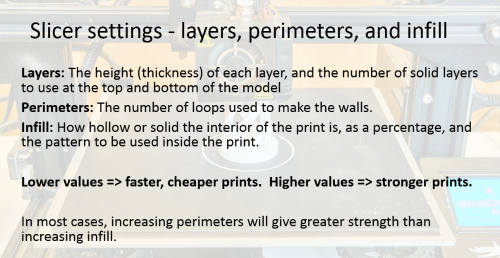
Set the layer height using the Print Settings dropdown to be 0.2 by default.
If you select smaller values then that will allow you to print finer details but the print will take longer.
If you select larger values then your print will have less detail, but it will be faster.
Set the filament type using the Filament dropdown. This should be written on the side of the filament reel.
Set the printer type using the Printer dropdown. This should be written on a wooden card in front of the printer you're using.
Orientation/Supports
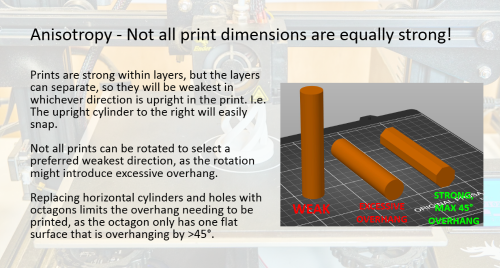
The orientation of your 3D print is important because each layer is supported by the one beneath it. For example if you were 3D printing a pyramid, you would ideally want the base of the pyramid to be the base of the 3d print. Use the Rotate command to rotate your part if you need to.

The rotate command can be found in the panel on the left
If your design needs to have overhanging or unsupported pieces, then you have two main options:
1) Have the slicer add in supports which can be broken off once the print is finished. To do this make sure the Supports dropdown is not None.
2) Use the Cut command to cut your part into pieces that could each be printed like a pyramid. For example a sphere would be very difficult to print and would require a lot of supports, but if you cut the sphere in half each half could act effectively as a pyramid and would be very simple to cut. When the print is finished, the two halves can then be glued together.
Other printing options

Export G-Code
Once you're happy with your settings, click the Slice now button which can be found at the bottom of the right panel.

Once it has finished slicing, the Slice now button will turn into Export G-code. Click this to save your g-code file.